 MySavior
Christian wallpaper maker
Bible verse Lock Screen wallpaper maker for iPhone
MySavior includes a Christian wallpaper maker for iPhone: set a Bible verse, a prayer or your own words on one of 110 backgrounds, style it with 82 fonts, and save it to Photos as an image the size of your iPhone’s screen, with no watermark.
iOS doesn’t let apps change your wallpaper, so you make it your Lock Screen yourself in the iPhone’s Settings. This page shows both parts.
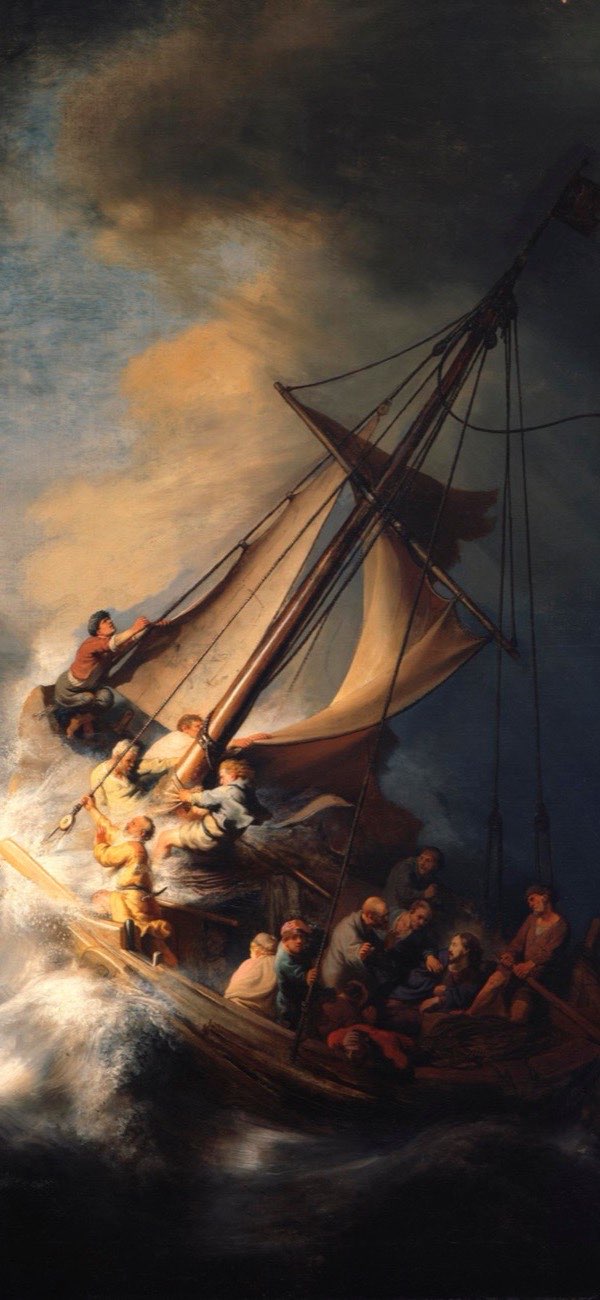
Be still, and know that I am God.
Psalm 46:10Illustration · Psalm 46:10, World English Bible (WEB), typed in as your own text, over Rembrandt’s Storm on the Sea of Galilee
At a glance
What you can make
On the Lock Screen, a wallpaper is the simplest way to keep a whole verse or prayer in view, at a size you can read, every time you wake your iPhone: widgets there have room for a few short lines. The wallpaper maker uses the same themes and fonts as MySavior’s widgets, so your Lock Screen and Home Screen can match.
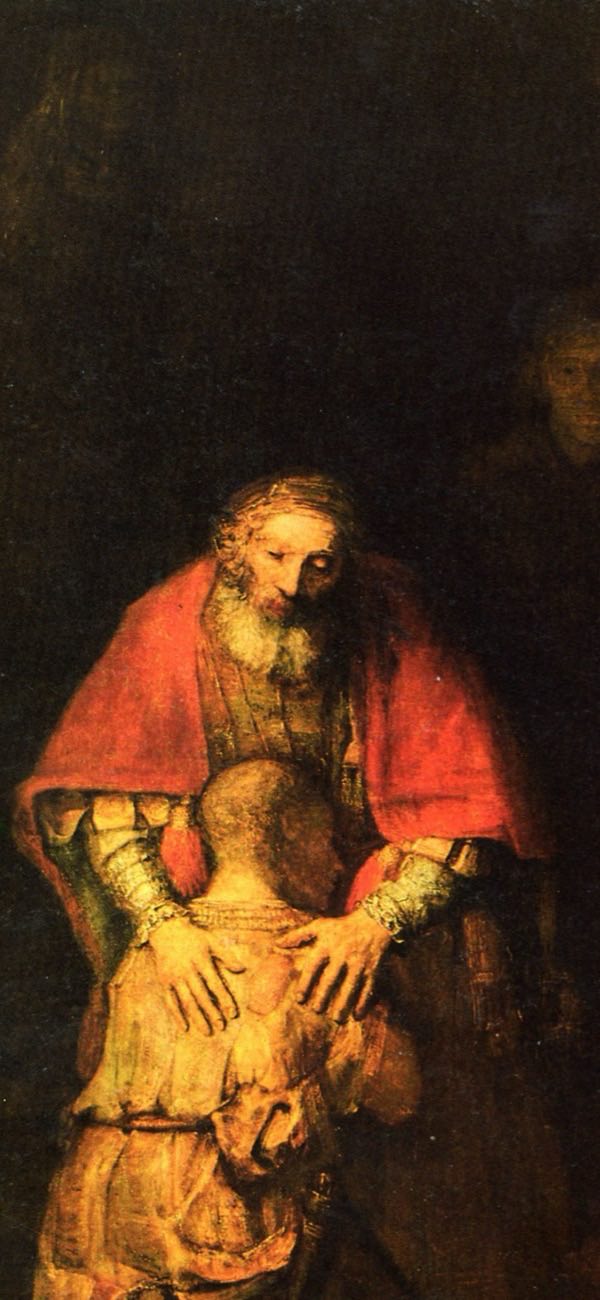
Shame says hide; grace says come closer.
Illustration · a Christian reflection from the app’s library over Rembrandt’s Return of the Prodigal Son
| Text | A Bible verse, prayer, Christian reflection or affirmation from the app’s library of 500, one of your favorites, or your own words with an optional reference. Or no text at all. |
|---|---|
| Backgrounds | 110 built in: 24 gradients and 86 photo and art backgrounds, including 17 classic paintings. Or start from an Unsplash photo or a blank canvas. |
| Fonts | 82, searchable by name, with underline, bold and italic where the font has them, sizes from 16 to 40, three alignments and any text color |
| Layout | Drag the text anywhere (it snaps to the center lines), pan and zoom a photo, and darken it so the words stand out |
| Preview | A Lock Screen preview with a sample clock, and a full-screen View 1:1 |
| Export | Download Wallpaper saves the image to Photos at your iPhone’s own screen resolution, with no watermark or logo |
| Saved designs | Each wallpaper you save stays in the Created tab, ready to edit or download again |
| Setting it | You choose the image in Settings > Wallpaper; iOS doesn’t let apps change your wallpaper |
Part 1 · in MySavior
How to make a Bible verse wallpaper
- Open the wallpaper maker
On MySavior’s main screen, tap the Lock Screen button (a phone with a padlock); if the buttons are hidden, tap the cross at the bottom first.
- Pick a background
Tap Background. The Original tab holds the 110 built-in backgrounds; tap + to start from an Unsplash photo or a blank canvas instead.
- Choose the words
Keep Include a quote on and tap Content. Search the library, pick one of your favorites, or tap + to write your own text, with an optional reference such as “Psalm 46:10”.
- Style it
Tap Edit wallpaper. Choose a font, size, color and alignment, drag the text into place, and position or darken the background. View 1:1 shows it full screen.
- Save the design
Tap Save. The wallpaper is kept in the Created tab, so you can come back and change it.
- Download it
Tap Download Wallpaper. MySavior saves the image to Photos and reminds you to set it from Settings. If iOS asks whether MySavior may add to Photos, allow it, or the image can’t be saved.
Library verses keep their reference under the text; prayers, reflections and affirmations appear on their own. To quote a verse in the wording of your own Bible, type it with + in Content and add the reference yourself.
Part 2 · in Settings
Set it as your Lock Screen wallpaper
iOS doesn’t let any app change your wallpaper, so you finish in Settings. These steps are the same on iOS 18 and iOS 26:
- Open Settings, then Wallpaper
Tap Add New Wallpaper to open the wallpaper gallery.
- Tap Photos
It is at the top of the gallery. Pick the image MySavior just saved; it is your most recent one.
- Check the position
The image already matches your screen, so you only need to pinch or drag it if you want a different crop.
- Tap Add
Then tap Set as Wallpaper Pair to use it on both screens, or Customize Home Screen to give the Home Screen another look, such as Blur.
You can also start from the Lock Screen: touch and hold it, tap the + button, then tap Photos. In MySavior, the How to set it button beside the preview plays a short video of these steps.
Leave the top of the image clear: iOS draws the clock and your Lock Screen widgets over the wallpaper. MySavior’s preview shows a sample clock to help you place the text. Its clock color is only a preview; you pick the real one when you set the wallpaper.
Steps checked against Apple’s iPhone User Guide, Change the wallpaper on iPhone (iOS 18) and the same page for iOS 26, on October 8, 2026.
The image isn’t in Photos
Check that MySavior may add images: open Settings > Apps > MySavior > Photos and allow it to add photos, then tap Download Wallpaper again.
Wallpaper or widget?
A wallpaper, a widget, or both
A wallpaper holds a whole verse; widgets hold a line and can change. You can have both: a verse wallpaper, with a cross or other symbol widget and a feast countdown under the time.
| Wallpaper | Lock Screen encouragement | Bible Verse widget | |
|---|---|---|---|
| Where | Behind everything on the Lock Screen, and the Home Screen if you pair it | Above or below the time, on the Lock Screen | The Home Screen, small or medium |
| How much text | A full verse or prayer | One short line | A verse, prayer, reflection or affirmation |
| Your own words | Yes | No | No |
| When the text moves on | When you set a new wallpaper | 24 times a day by default | When you tap Next or pick another design |
To add widgets on top of your new wallpaper, follow how to add a widget to your iPhone Lock Screen. For a verse on the Home Screen instead, see the Bible Verse widget, or browse all MySavior widgets.
Questions and answers
How do I make a Bible verse Lock Screen wallpaper on iPhone?
In MySavior, open the wallpaper maker, pick a background, choose a verse from the library or type your own with its reference, style the text and tap Download Wallpaper. Then go to Settings > Wallpaper > Add New Wallpaper, tap Photos and choose the image.
Does the wallpaper have a watermark?
No. The saved image holds only your background and your text, with no logo, at your iPhone’s own screen resolution (on an iPhone 16, for example, 1179 × 2556 pixels).
Can MySavior set the wallpaper for me?
No. iOS doesn’t let apps change your wallpaper, so MySavior saves the image to Photos and you choose it in Settings > Wallpaper. The app plays a short video of the steps when you tap How to set it.
Can I write my own text?
Yes. In Content, tap + and type any text, with an optional reference shown underneath. You can also turn off Include a quote for a background with no words, and keep the space for widgets.
Can I use a picture from my iPhone as the background?
No. Backgrounds come from the 110 built in, from Unsplash (searched inside the app), or a blank canvas; pictures saved on your iPhone can’t be used.
Make your Lock Screen wallpaper
MySavior for iPhone with iOS 18.6 or later: a Christian wallpaper maker, plus Bible verse, feast countdown and Saint of the Day widgets.